OvoVix is compatible with all major streaming apps. Below are our recommended options.
Option 1: Smarters Player
Step 1: Open Google Play Store
Step 2: Search for Smarters Player and install it
Step 3: Open Smarters Player and select Add New User
Step 4: Enter your account credentials For the first field Choose a name for your list (it can be any name ), Then Enter the username, password and server URL from your welcome email and click ADD USER
Step 5: Your content library will load within a few seconds then you will be logged in and you will see this page
Option 2: IBO Player
Step 1: Go to the Samsung or LG Smart TV app store screen and search for “IBO Player” application If the app is not displayed on the main screen you may have to search for it in ‘All Apps’ or ‘Updates’. If you still can’t find it please contact us.
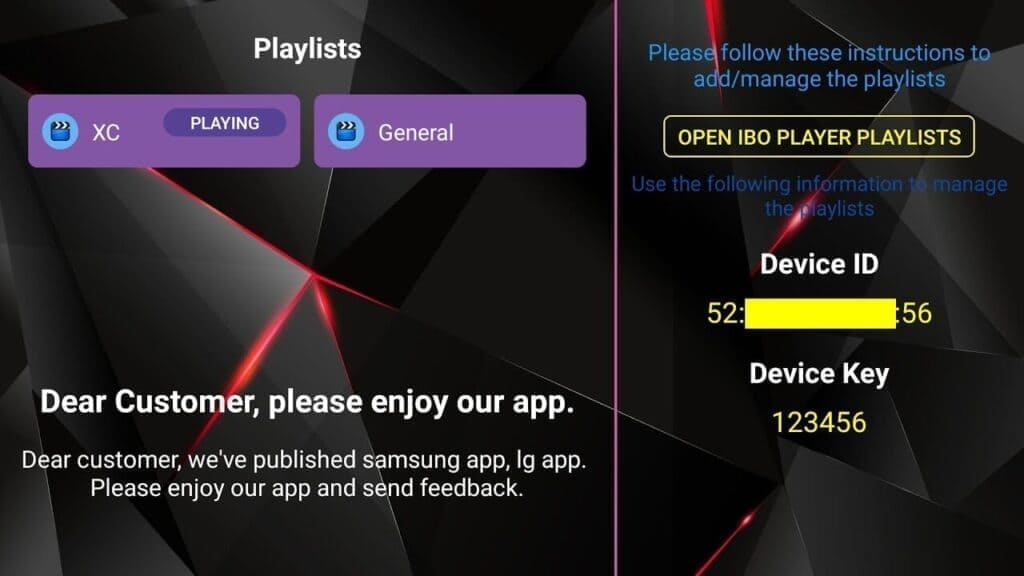
Step 2: Launch the “IBO Player” app and make a note of the ‘Device ID’ and ‘Device Key’ which is displayed on the screen.
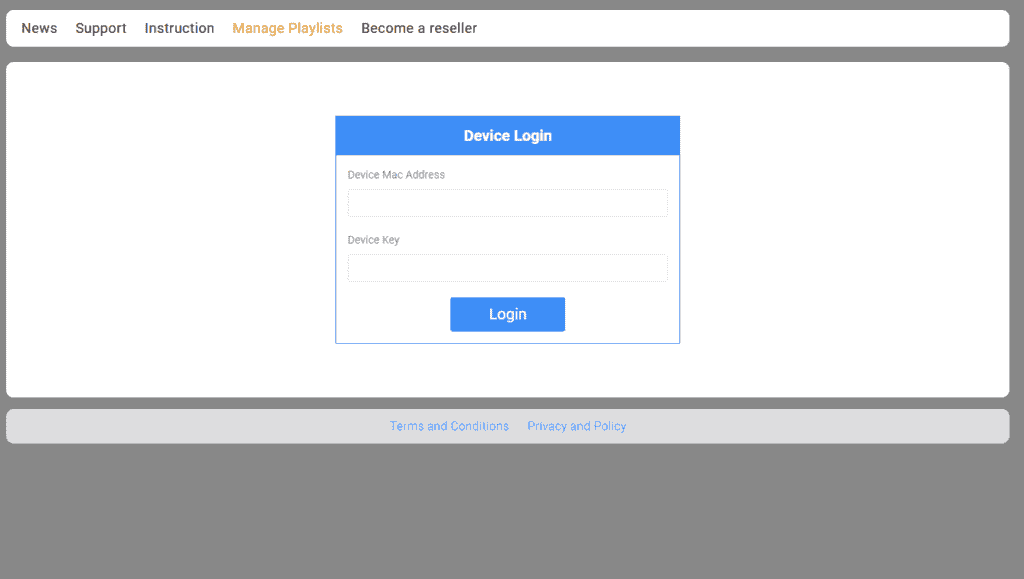
Step 3: Open the IBO Player activation page and log in with your Device ID and Device key you noted in step 1, Then click on Login.
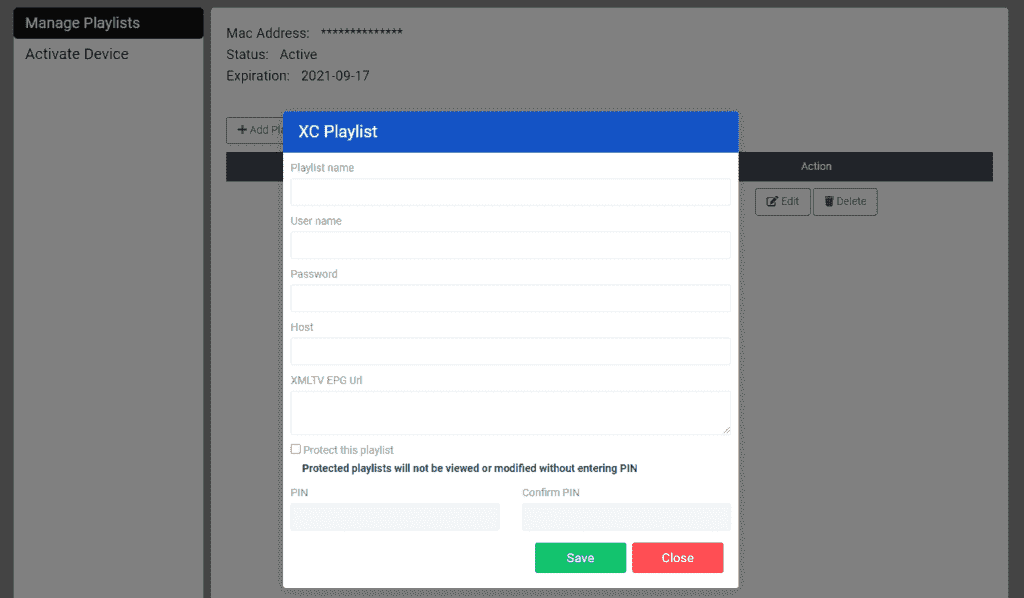
Step 4: Click Add Playlist and enter your account credentials from your welcome email. Enter your Username, Password, and Server URL. Click on Save
Step 5: Then back to the IBO Player application and choose Refresh to reload Playlists, Then the playlist name must appears
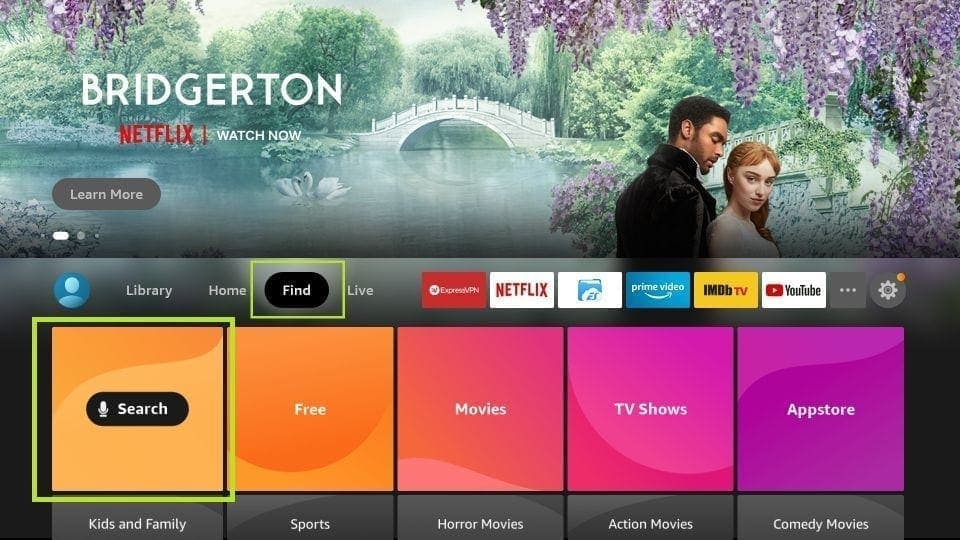
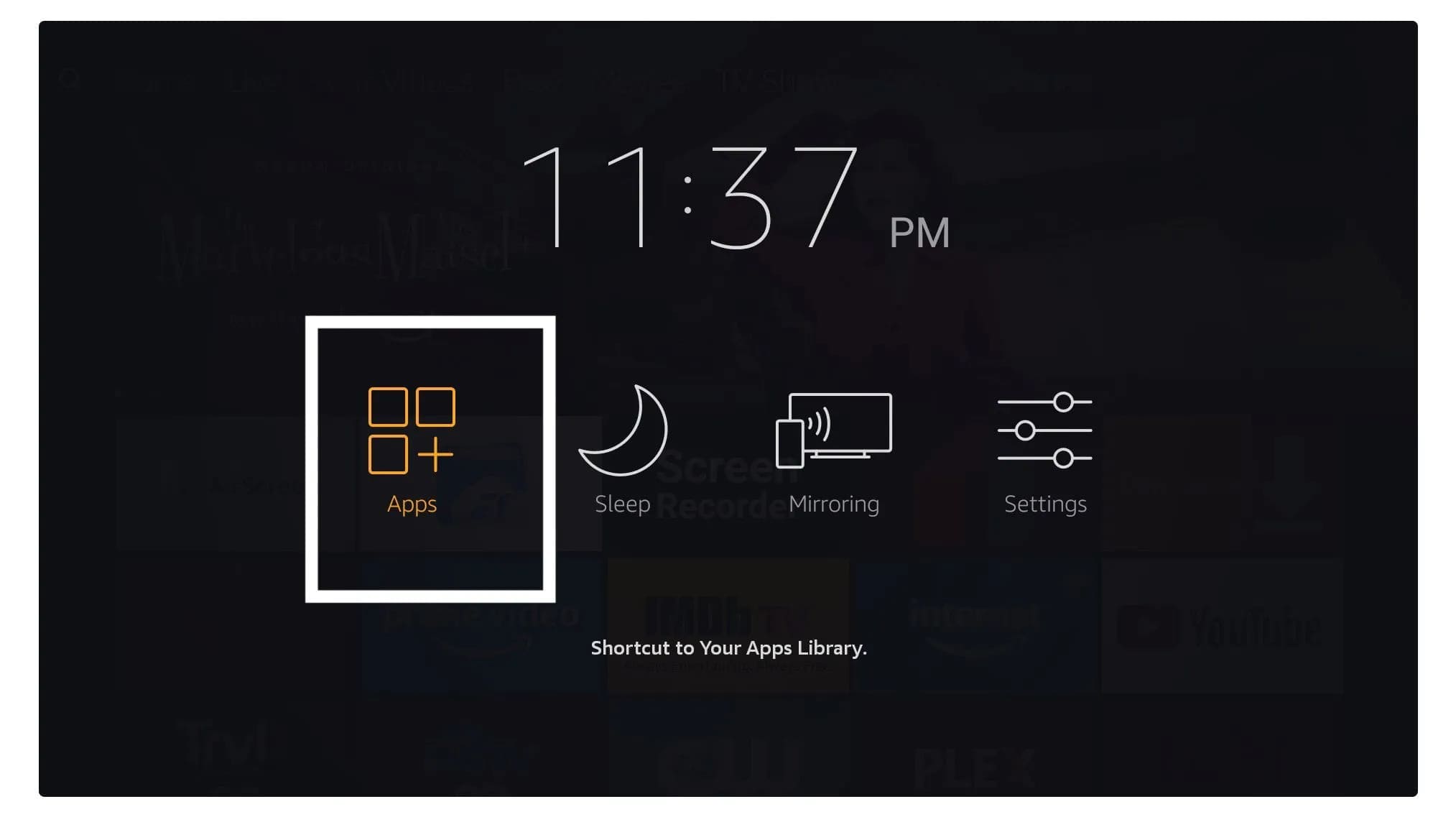
From the home screen of your device, hover over the Find option.
Step 1: We will first install the Downloader app
The Downloader app allows you to install streaming apps directly on your Fire TV Stick
Step 2: Click the Find > Search option on the home screen of FireStick
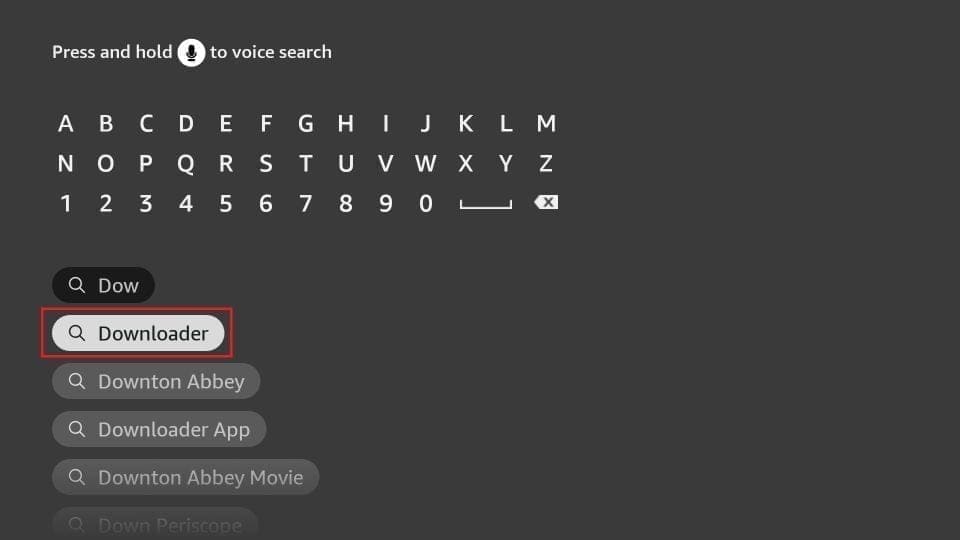
Step 3: Type the name of the app (which is Downloader)
Click the Downloader option when it is displayed in the search results
Choose the Downloader icon on the following screen and download and install the app
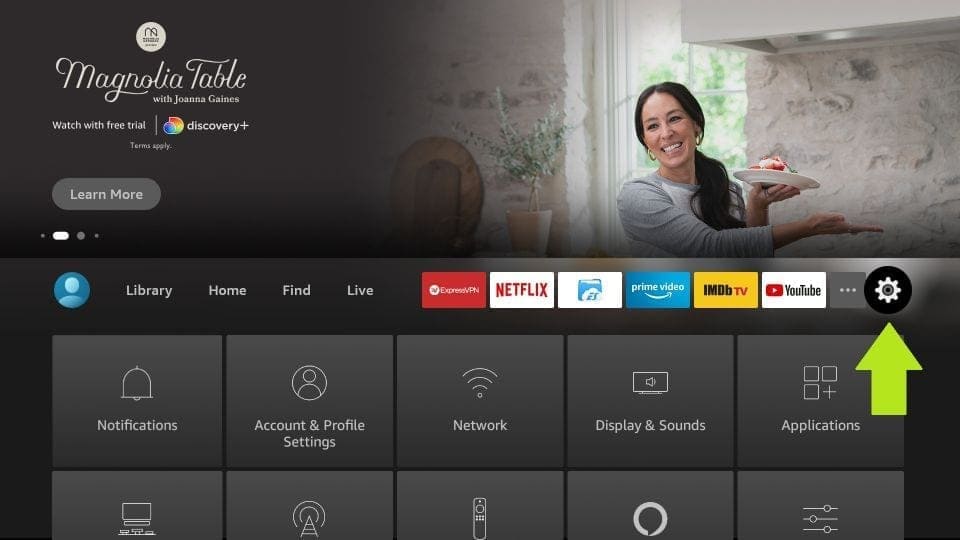
Step 4: Get back to the home screen of FireStick after installing the Downloader app
In the menu bar, click Settings
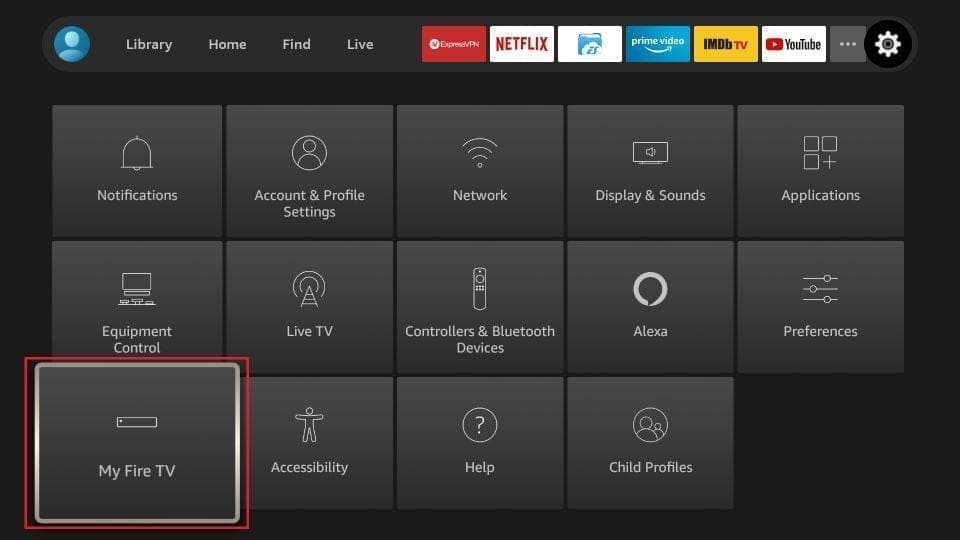
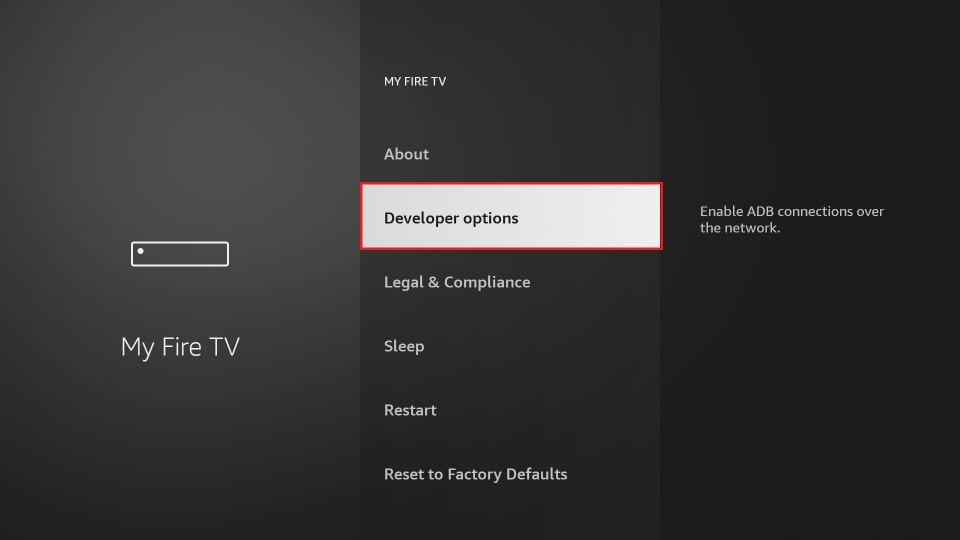
Step 5: In the Settings, choose the option My Fire TV
Step 6: When the following set of options are displayed on the next screen, click Developer Options
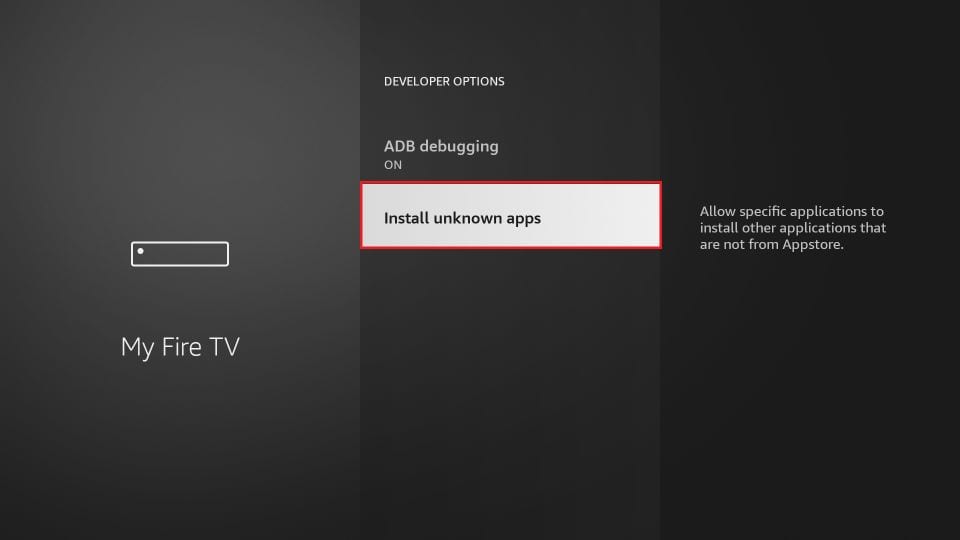
Step 7: Click Install from unknown apps
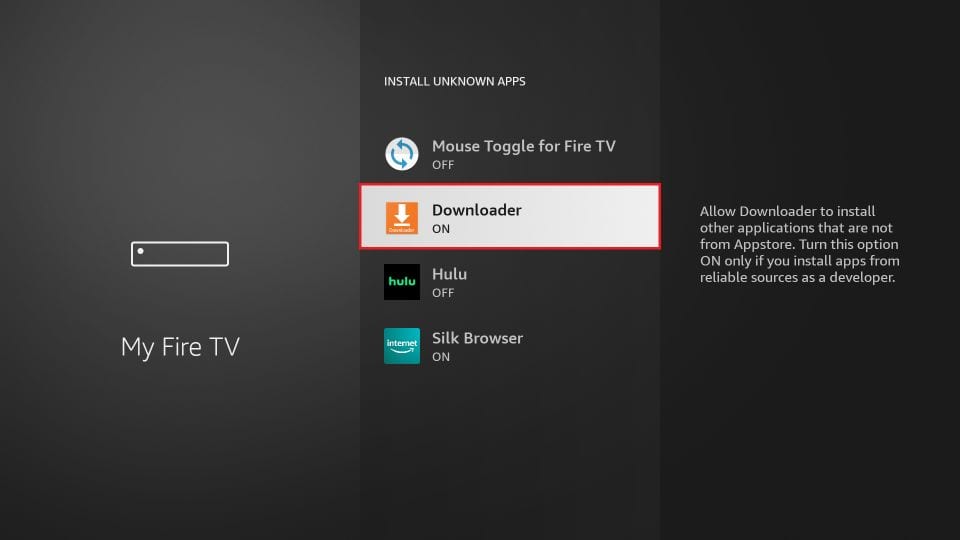
Step 8: Click Downloader to change the status to ON
With this, you have configured the FireStick settings to allow the installation of Smarters and other third-party apps. Follow the steps below:
Step 9: You may now open the Downloader app When you run this app for the first time, a set of prompts will appear. Dismiss them until you see the following screen
On this screen, you need to click the URL textbox on the right side (make sure Home option in the left menu is selected) where it says ‘http://’
Step 10: Go ahead and enter the following path on this window: https://bit.ly/mainsmart
Click GO
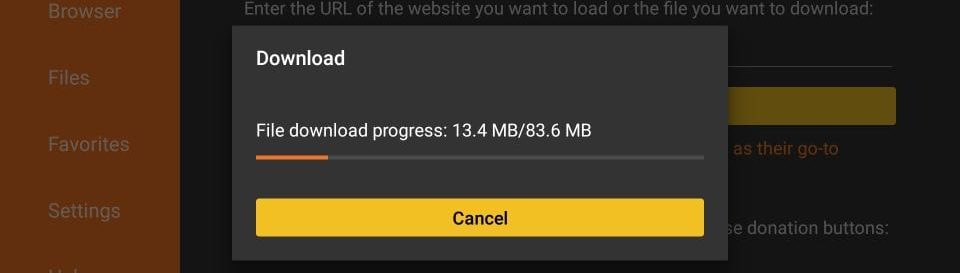
Step 11: Wait for the app to download and install onto your FireStick device
Step 12: When the download has completed, the Downloader app will run the APK file and the installation will start
Click Install
Step 13: Wait for the installation to finish
Step 14: Installation is concluded with the App installed notification
You may now open the app and log in with your OvoVix credentials
We recommend choosing Done first to free up storage space and save some space on the FireStick storage
Step 15: If you clicked DONE above, you will be back on the Downloader interface
Click Delete
Great! Smarters Player is now installed on your Fire TV Stick.
Step 16: Launch Smarters on Firestick either by going to Your Apps & Channels section or pressing & hold the Home button and then select Apps from the next screen.
Step 17: Scroll down and you will see the app appears at the bottom so press select to launch it.
Step 18: When launching it for the first time you will be asked to agree with their user agreement so simply click on the Accept button
Step 19: Once it’s done from the next you will be asked to Add a User so for this just click on the Add User button.
Step 20: From the next screen, you will notice multiple options to Log Into the Smarters Pro. Now you need to choose Add Account and enter your OvoVix login details.
Step 21: After that you will notice various fields appear there so you need to fill them as follow:
Any Name: Type the name of your user.
Username:
Found in your our welcome email.
Password: Found in your our welcome email.
URL: Found in your our welcome email.
Step 22: Once you filled every field just click on the Add User and it will create a new profile.
Step 23: After that, you will notice the user is listed on your screen so click the User that you created.
Step 24: From the next screen, our Service content library is loading — this takes just a few seconds so just wait for a while until it completes.
Step 25: Once the downloading is completed a simple interface will appear with Our Content, and other options. Now you just need to select any of these options and then it will Show Content available in that category.
Step 2: Open the app once downloaded and Enter the login details.
Step 3: Enter the Username, Password and Server URL from Our welcome email. Tap Add User.
to proceed to the next section.
Step 4: Wait some seconds.
Step 5: Now click on “Live TV” icon as depicted in the image via a red arrow.
Step 6: Now you must Select a content category to browse and proceed to the next section.
Step 7: Now you must Tap any title to watch. Double-tap to enter full screen. as the final step.
Step 8: To enable the program guide, tap Install Guide — no URL needed.
Done
Option 2: GSE Smart Player
GSE Smart app available for iPhone, iPad, tvOS, and Mac OS X. You can download it from the App store. Download for iOS devices: apps.apple.com
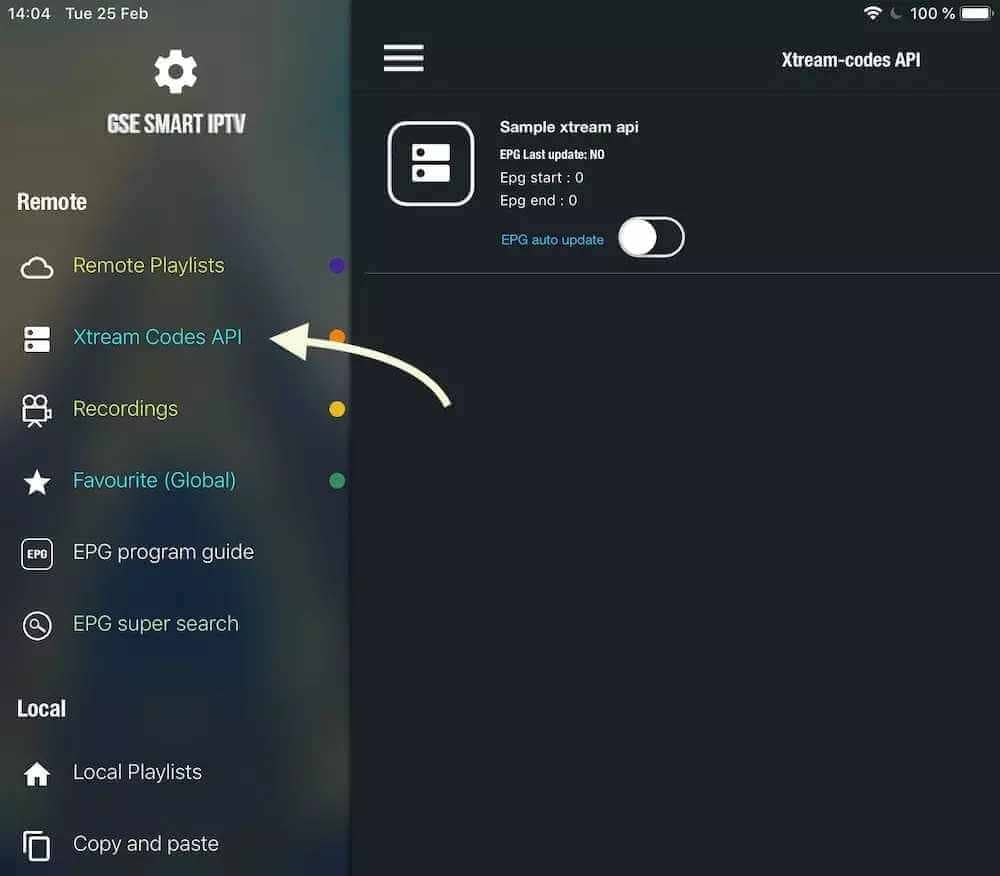
Step1: Navigate to Our account credentials
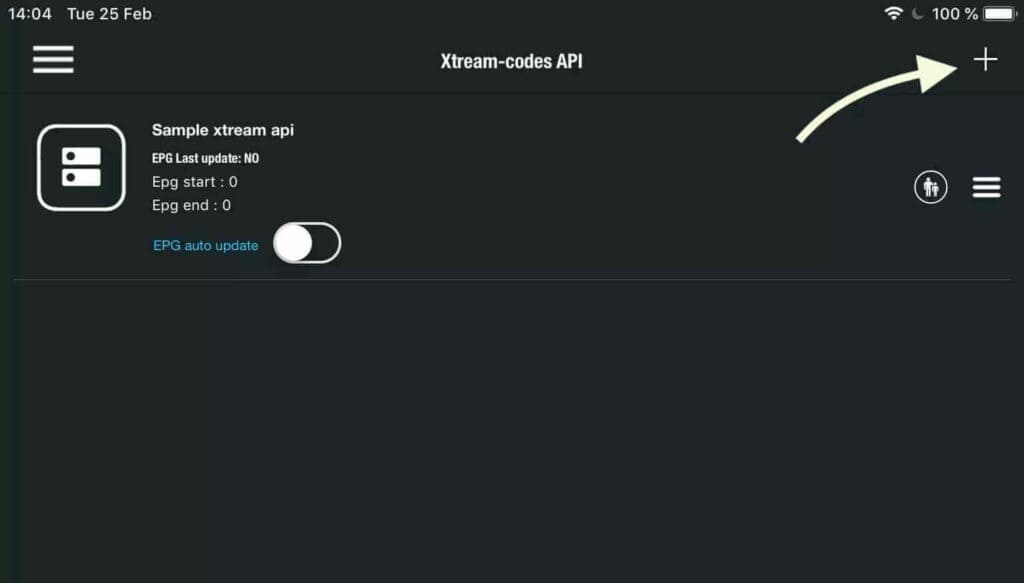
Step2: Press + icon to add new Our account credentials
Step 3: Enter Our account credentials based details For the first field Choose a name for your list (it can be any name ), Then enter your username, password and URL we provided to you Turn ON Autoupdate and click LOGIN
Step 4: Enter the created list and enjoy Our Content
Our service is compatible with any application, and this is the recommendation applications
Smarters Player
Step 1: Open Google Play Store
Step 2: Search for “Smarters Player” or Smarters player lite and install it .
Step 3: Open Smarters PRO and click Add Account
Step 4: Enter Our account details For the first field Choose a name for your list (it can be any name ), Then enter your username, password and URL we provided to you and click ADD USER
Step 5: It will start downloading Our Content about 10 seconds then you will be logged in and you will see this page
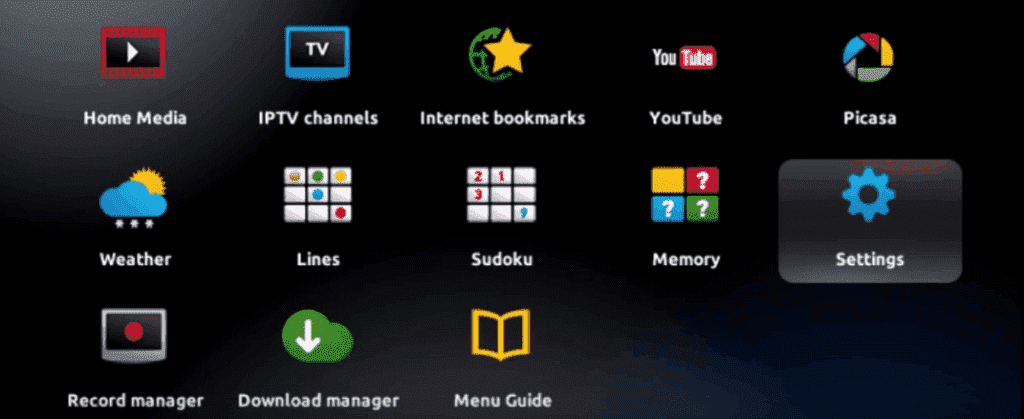
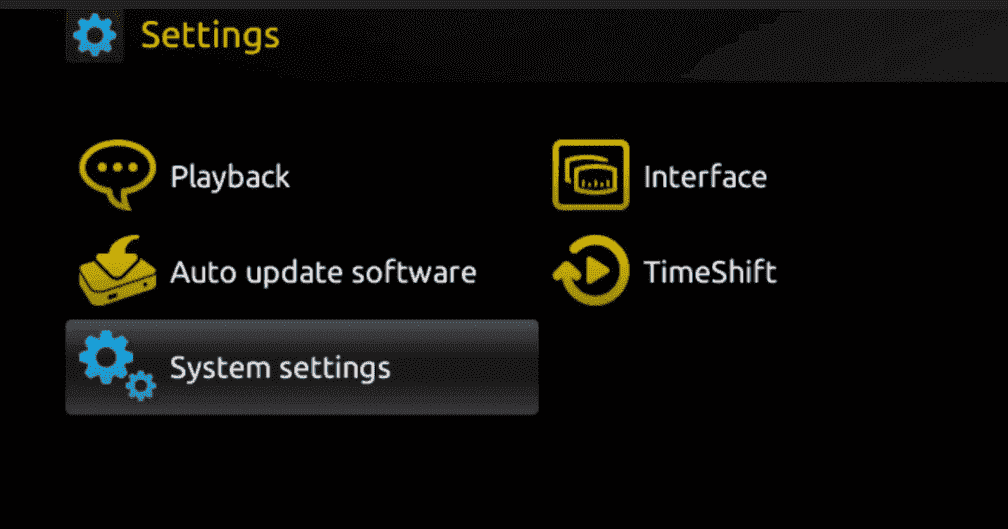
This tutorial will guide you through a simple and effective steps of installation your Mag (250/254/256…). Step 1: When the box is being loaded the main portal screen appears. After that click on “settings”, and press the remote button “SETUP/SET”.
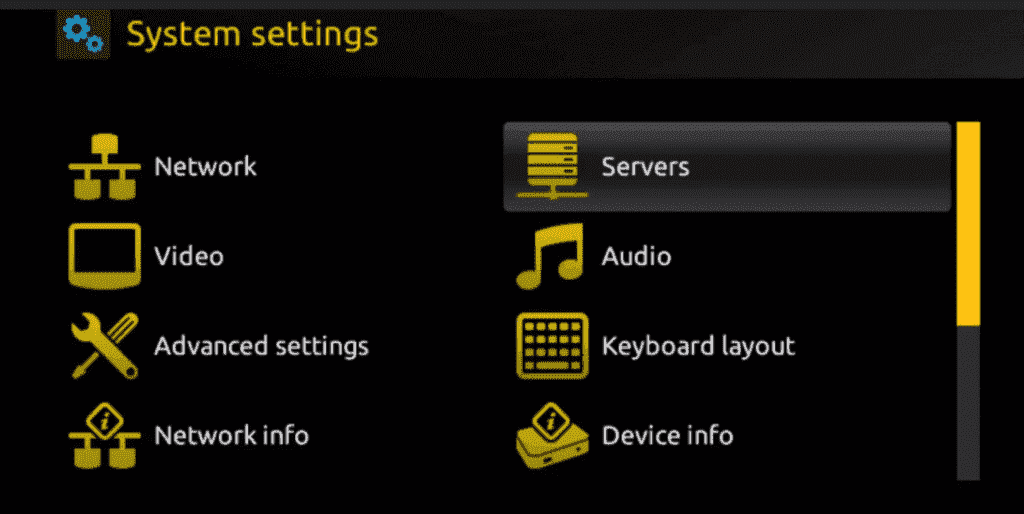
Step 2: Then press on “System settings” and click on “Servers”.
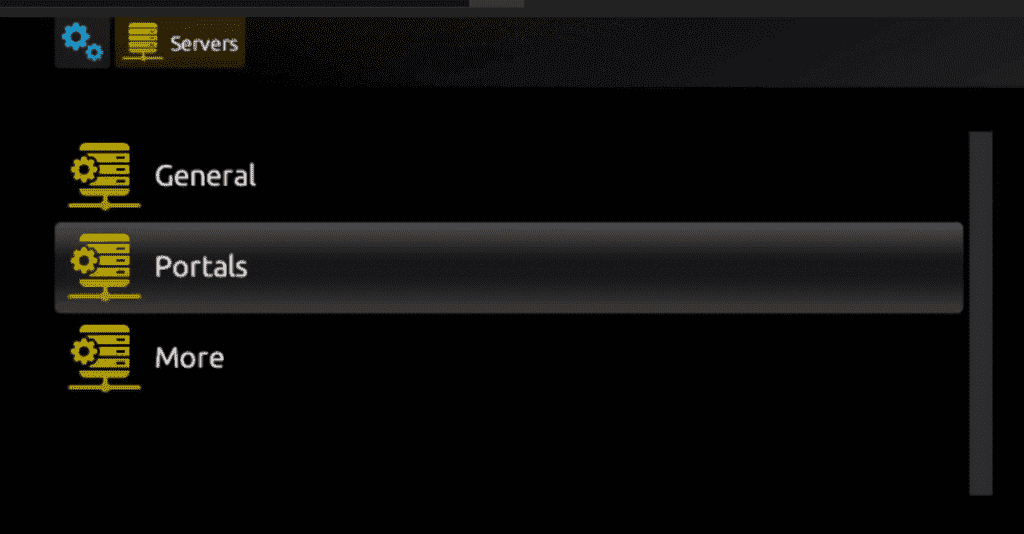
Step 3: Click on ‘Servers’
Step 4: Choose and Press option ‘Portals’
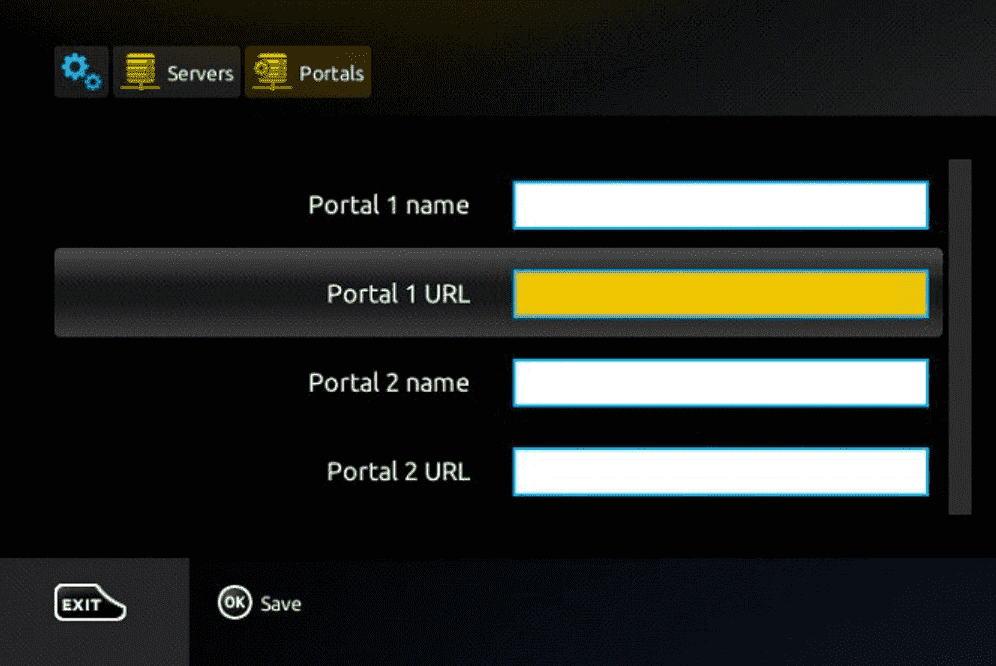
Step 5: In the ‘Portal 1 name’ line enter a portal name and in the ‘Portal 1 URL’ enter portal URL.
Therefore for the activation of our Service on your MAG box, you must send us with your order the MAC address found on the label behind the box, the activation is done entirely remotely, just after activation, we will send you a URL link that you have to put on your PORTAL, as in the photo below:
Step 6: Finally when you complete select and click ‘OK’ to save the changes. Step 7: Click ‘EXIT’ on the remote control after the settings are being saved. Step 8: Consequently you have to reboot the box. Choose the option ‘OK’ to make the changes applied.
Step 1: Go to the search engine and type in “Smarters Pro“.
Step 2: Then open the website
Step 3: Select Downloads in the Menu
Step 4: Download the new version of Smarters Pro.
Step 5: After the file download is complete, click on the executable file
Step 6: Windows will ask you for permission to open this file. Select “Yes”
Step 7: The file will now begin the installation process. This should take between – and two minutes
Step 8: Once the installation is complete, start the Smarters program. Click Add New User and select Login with Our account credentials, Add your login data (username, password and Portal URL) for our service.
Step 9: You are now ready to start watching content on Smarters Pro!
2nd Application : My Player
This is an exceptional media player with program guide to play Our content on your Windows Phone, Windwos10, and Xbox One. You can simply load our playlist from storage or remote source and you are good to go.
You can download this app via the link below: https://www.microsoft.com/
Step 1: Navigate Settings
Go to the Settings tab and open Add new playlist and program guide source
Step 2: Enter Our account credentials Link Type a name (ex:overbox) in the Remote channel list name field. Enter (paste) Our account credentials link provided by provider in Enter remote source URL Press Add remote list
Step 3: Select list to load Back to Settings and select overbox in Select Channel playlist
Step 4: Watch Our content Done, Back to dashboard tab now and select your country you want to watch.